Guide Me Now
Quick Domains
Technical Reference Guides
Type to filter, enter to view Index status FULLY SYNCED
Simple educational tech guides

Learn Tech Basics for Printers, Routers & PC Issues.

Printer Setup & Offline Status

Troubleshoot Printer Spooler & Connection Issues.

Router & Wi-Fi Connections

Understand Router Settings & Network Configuration.

Email Configuration & Sync

Resolve Account Sync & Email Server Failures.

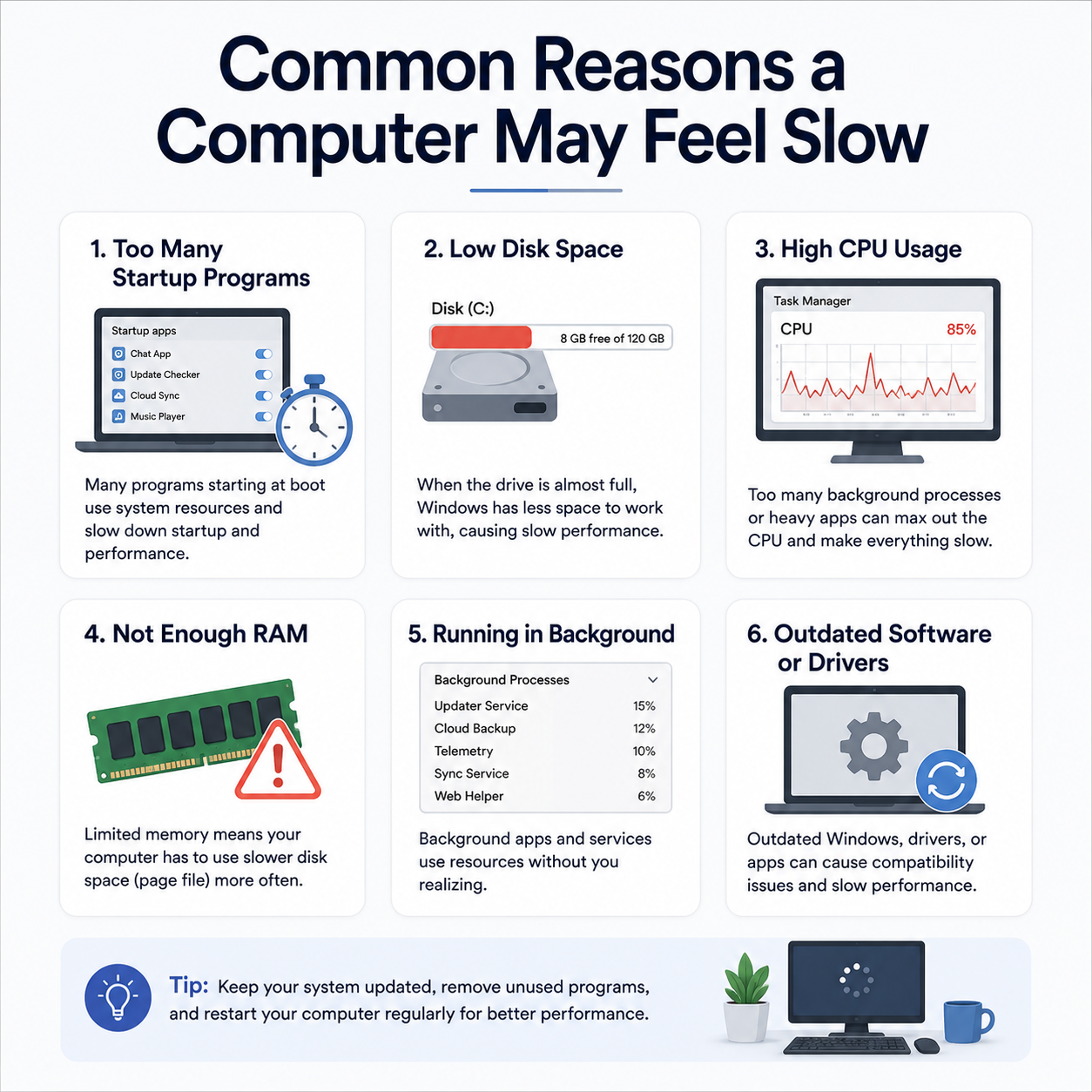
Slow Computer & Speed Optimization

Manage Background Processes & Device Drivers.

Windows Update Cycles

Fix Update Errors & Understand Settings Messages.

Driver Learning Portal Banner
Core Basics

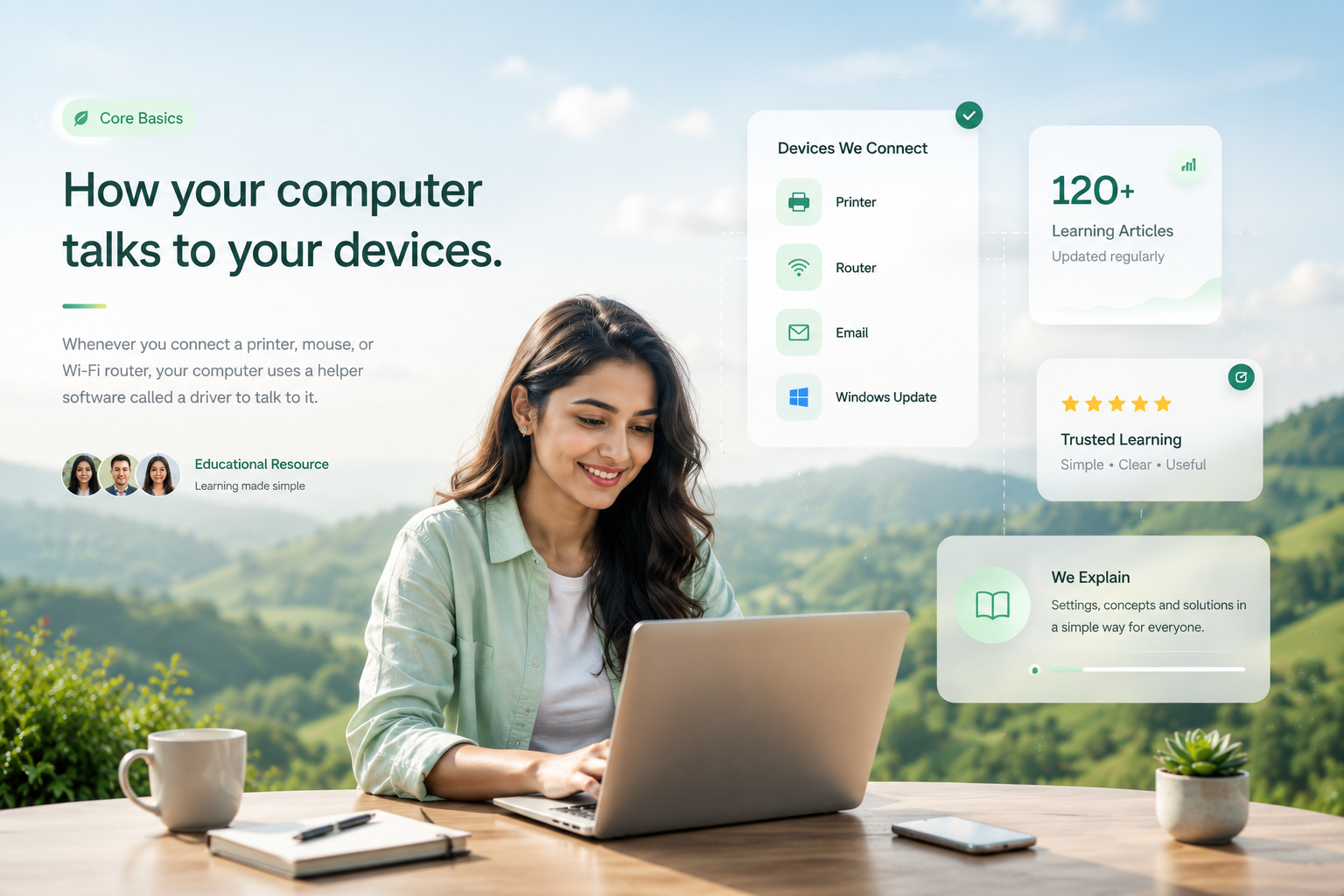
How your computer talks to your devices.

Whenever you connect a printer, mouse, or Wi-Fi router, your computer uses a helper software called a driver to talk to it.

Driver learning visual

Device communication made simple.

Learn how commands move from your computer to printers, routers, keyboards, and other connected devices.

Printer Router Email Updates

03

Easy steps to understand driver communication.

★★★★★

Educational Resource

No repair service. No phone support. Learning only.

01

You tell it what to do

When you plug in a mouse, click Print, or connect to Wi-Fi, your computer starts a task.

02

The driver translates

The driver converts your command into a language your exact device model understands.

03

The device works

Your printer prints, your mouse moves, or your Wi-Fi connects after receiving instructions.

Learning Guide Topics

Select a topic and start reading.

Choose from simple educational guides about printers, drivers, routers, email syncing and Windows update messages.

What this section explains

Simple topics for everyday computer learning.

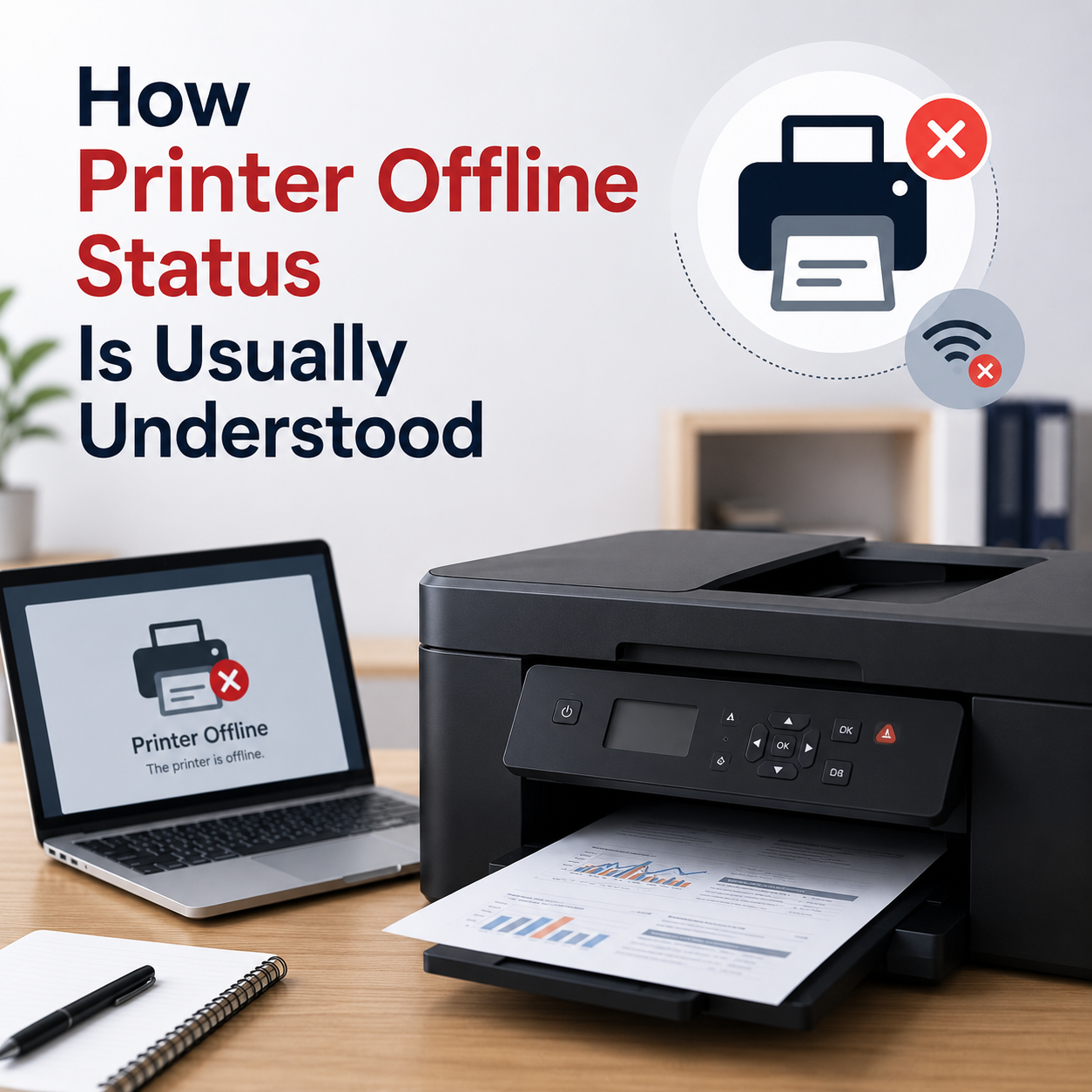
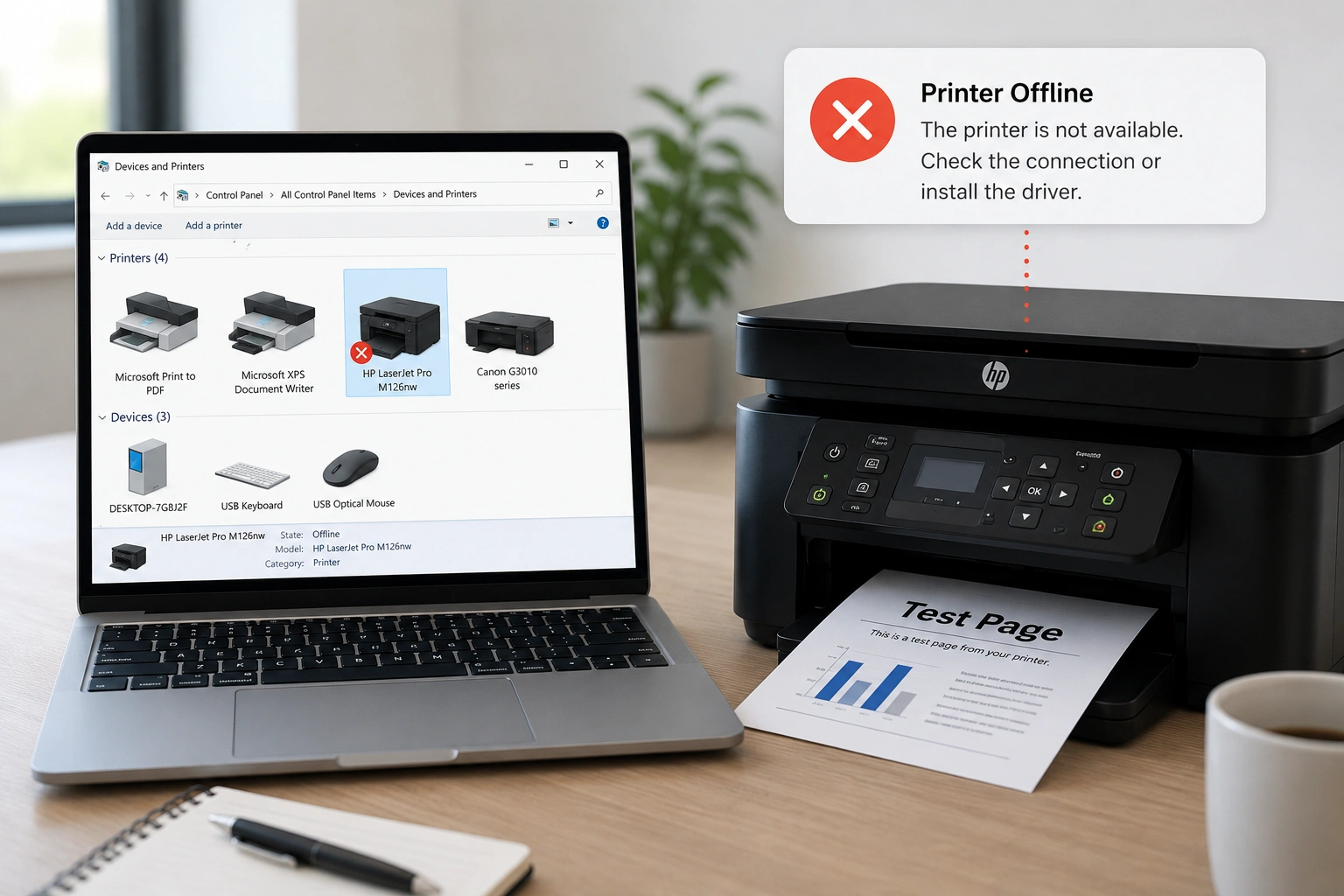
How to Connect a Printer to Your PC
01 / Printer Guide
Printer Guide Verified reference: Microsoft Support

How to Connect a Printer to Your PC

Learn printer connection, print queue, default printer and basic setup concepts.

Connecting a printer to your computer involves setting up the correct physical or wireless communication link. This guide explains how operating systems interface with printer drivers via USB cabling or local Wi-Fi networks. We break down how to manage active print queues, verify default printer configurations, and resolve common device status check delays.

USB & Wi-Fi connection
Printer settings
Print queue meaning
Default printer basics
When Do You Need a Software Driver?
02 / Driver Basics
Driver Basics Verified reference: Microsoft Learn

When Do You Need a Software Driver?

Understand why drivers help computers communicate with hardware devices.

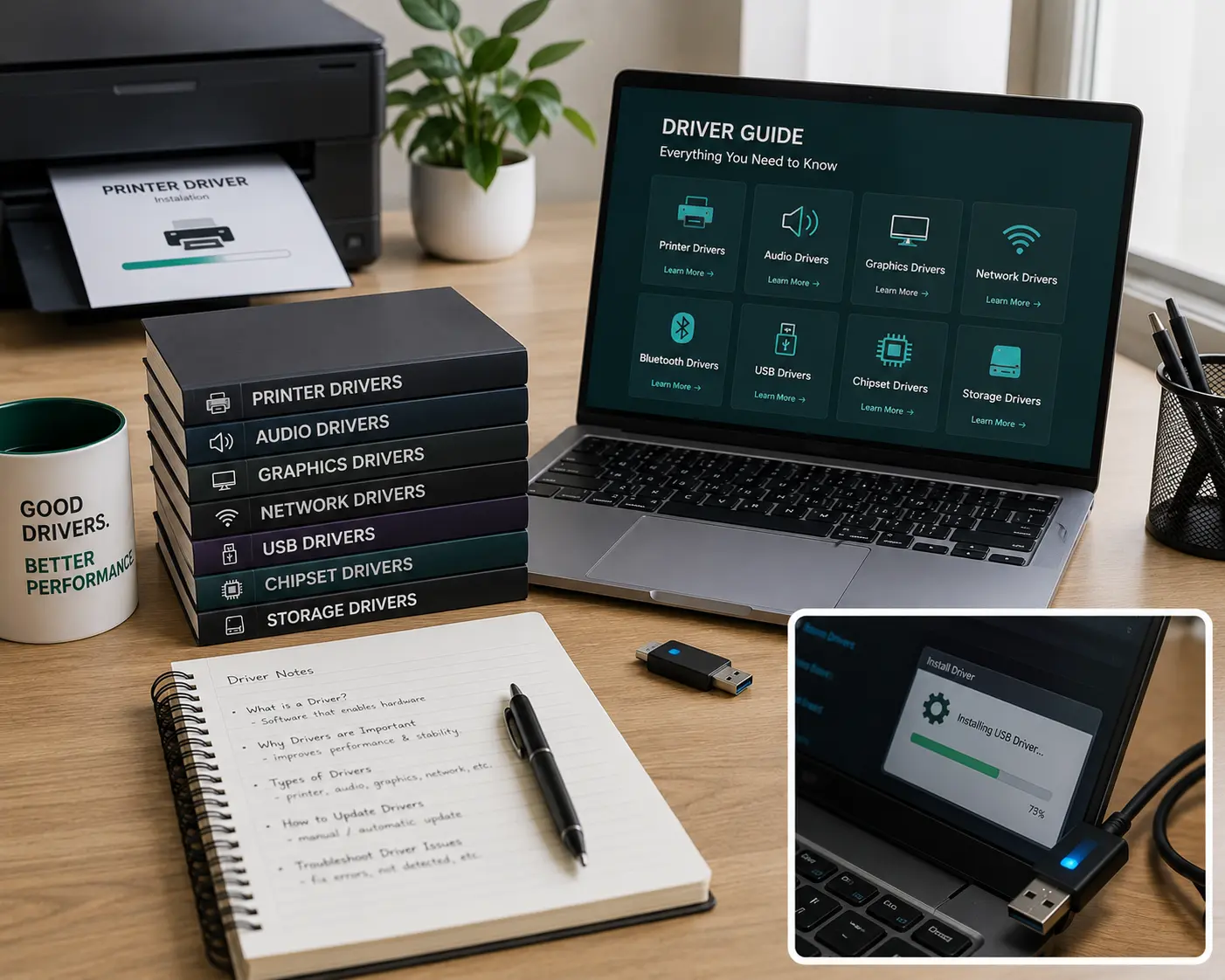
A software driver is a translator that allows your computer operating system to communicate with plugged-in hardware accessories. Without correct drivers, devices like printers, keyboards, sound systems, and network adapters cannot interpret commands.

Driver meaning
Device recognition
Hardware connection
Common driver terms
How Router and Wi-Fi Connections Work
03 / Network Guide
Network Guide Verified reference: Microsoft Support

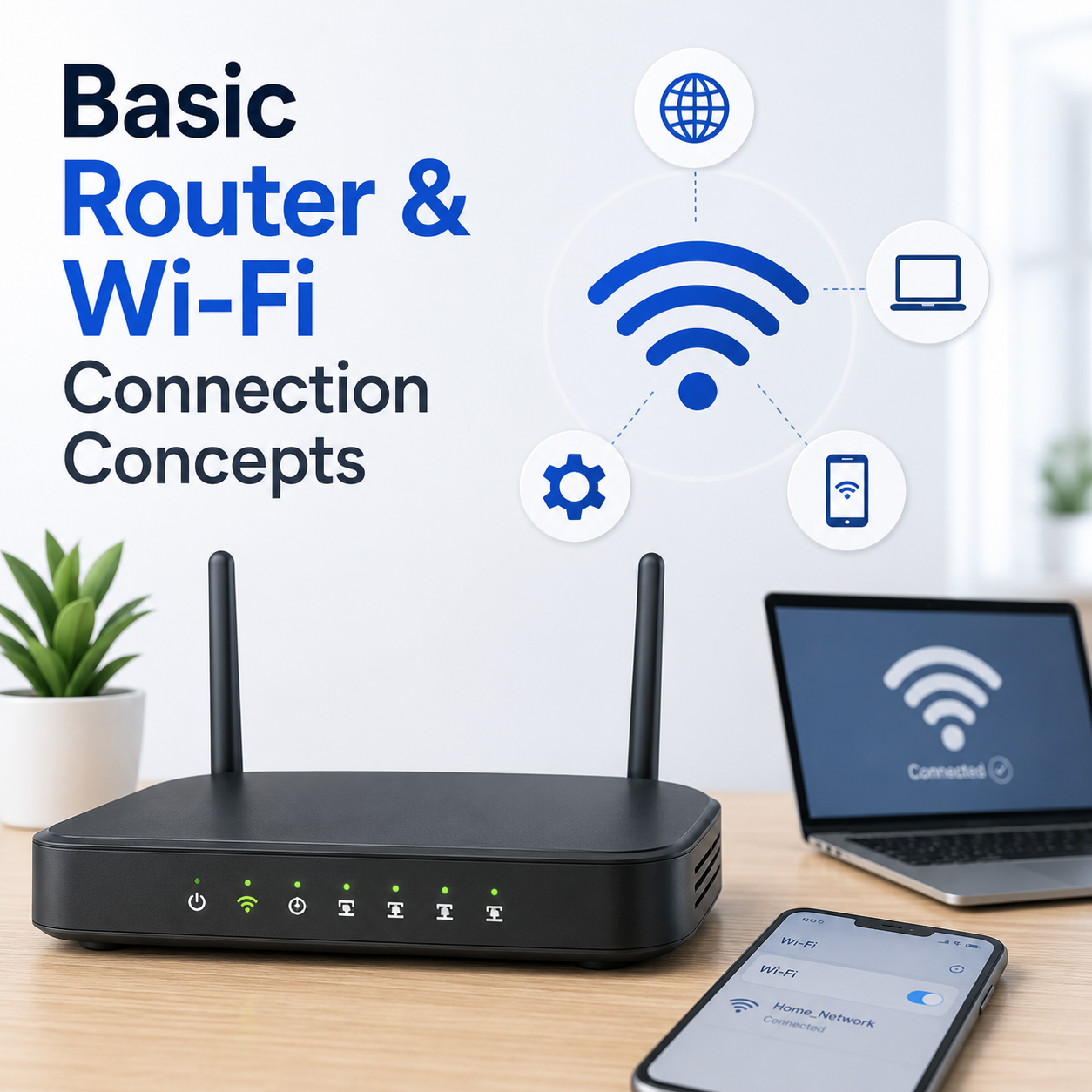
How Router and Wi-Fi Connections Work

Learn Wi-Fi signal, router lights, IP status and connection meaning.

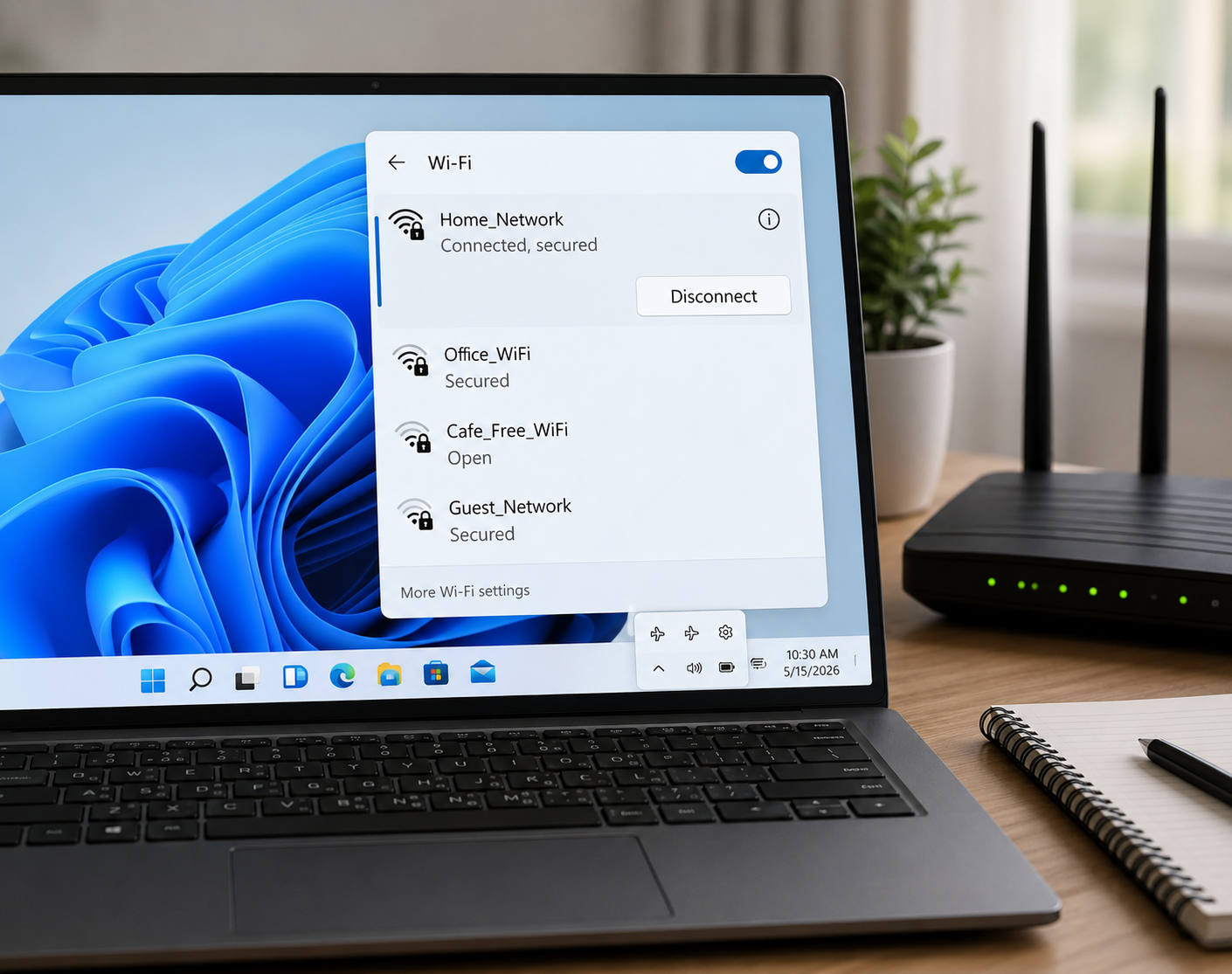
Wireless networking relies on routers transmitting radio signals to communicate data packages with your computer. This guide covers how SSID broadcast names function, what different router indicator lights signify, and how to verify local IP configurations.

Wi-Fi signal basics
Router indicator lights
Network status check
Connection troubleshooting
Understanding Email Access and Syncing
04 / Email Guide
Email Guide Verified reference: Google Help

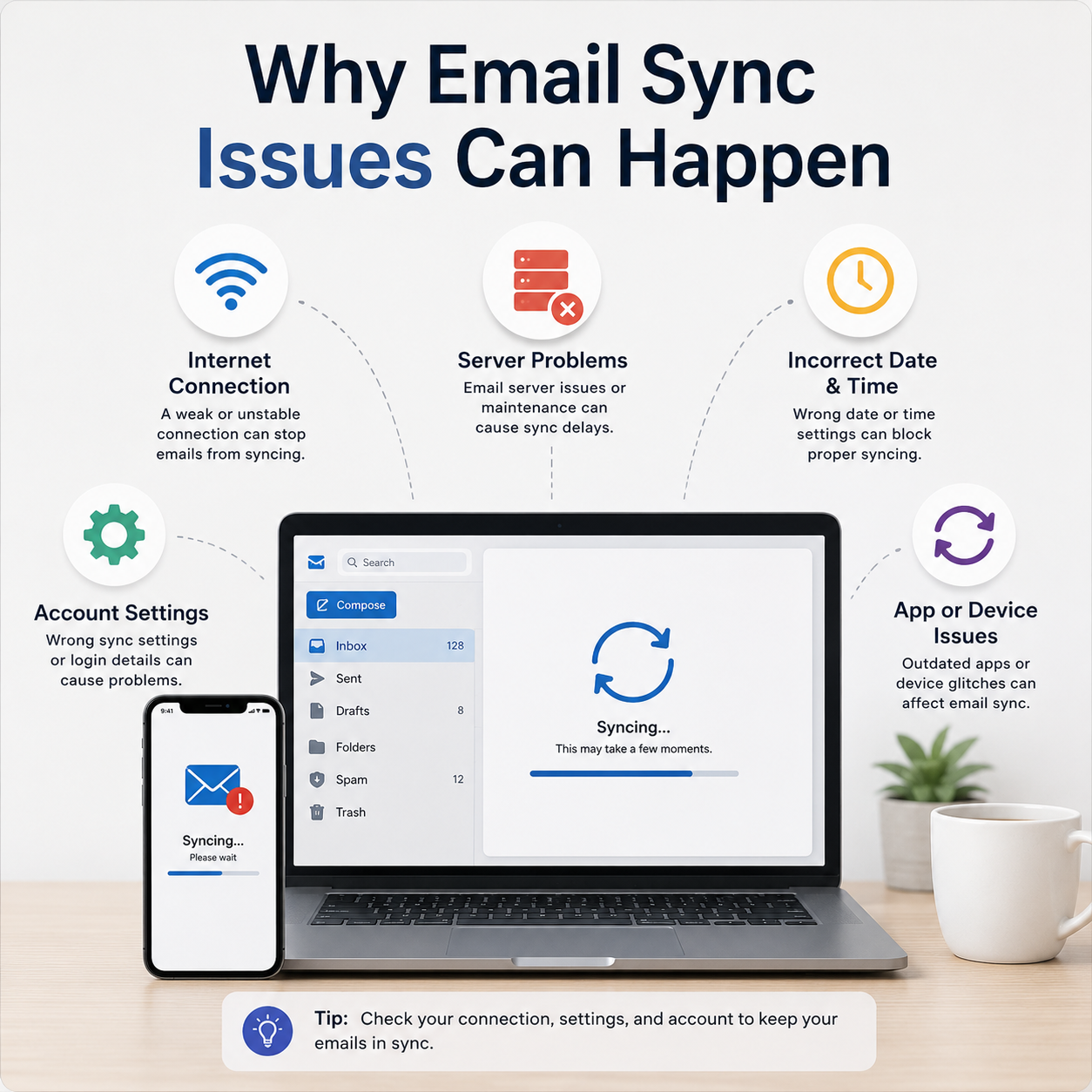
Understanding Email Access and Syncing

Understand email sync, login authorization, folders and server settings.

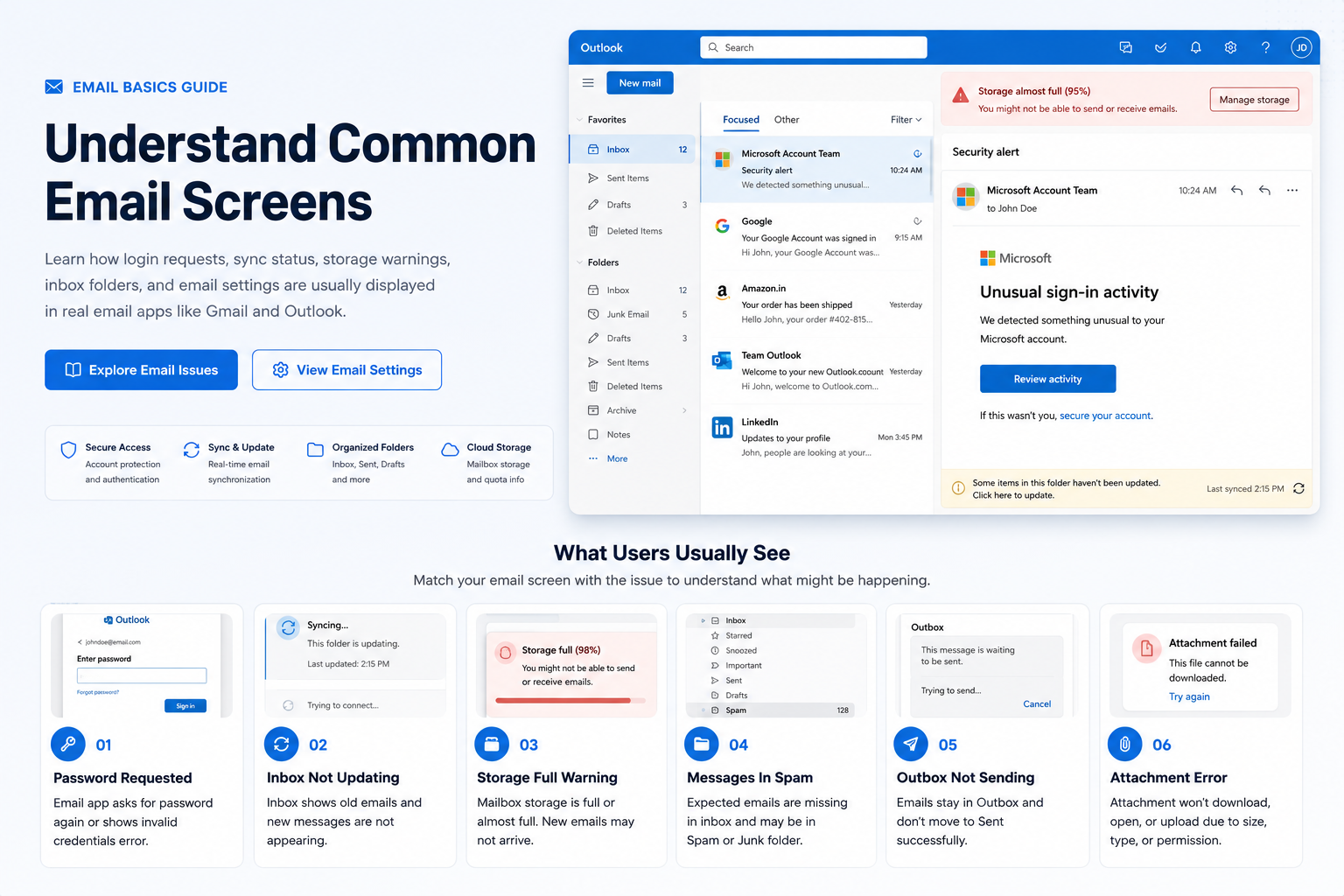
Email synchronization is the process that matches messages between your device local application and the remote email server. Learn the basic differences between incoming and outgoing server configurations, spam filters, and credential authentication.

Login authorization
Inbox folder sync
Manual sync process
Account server config
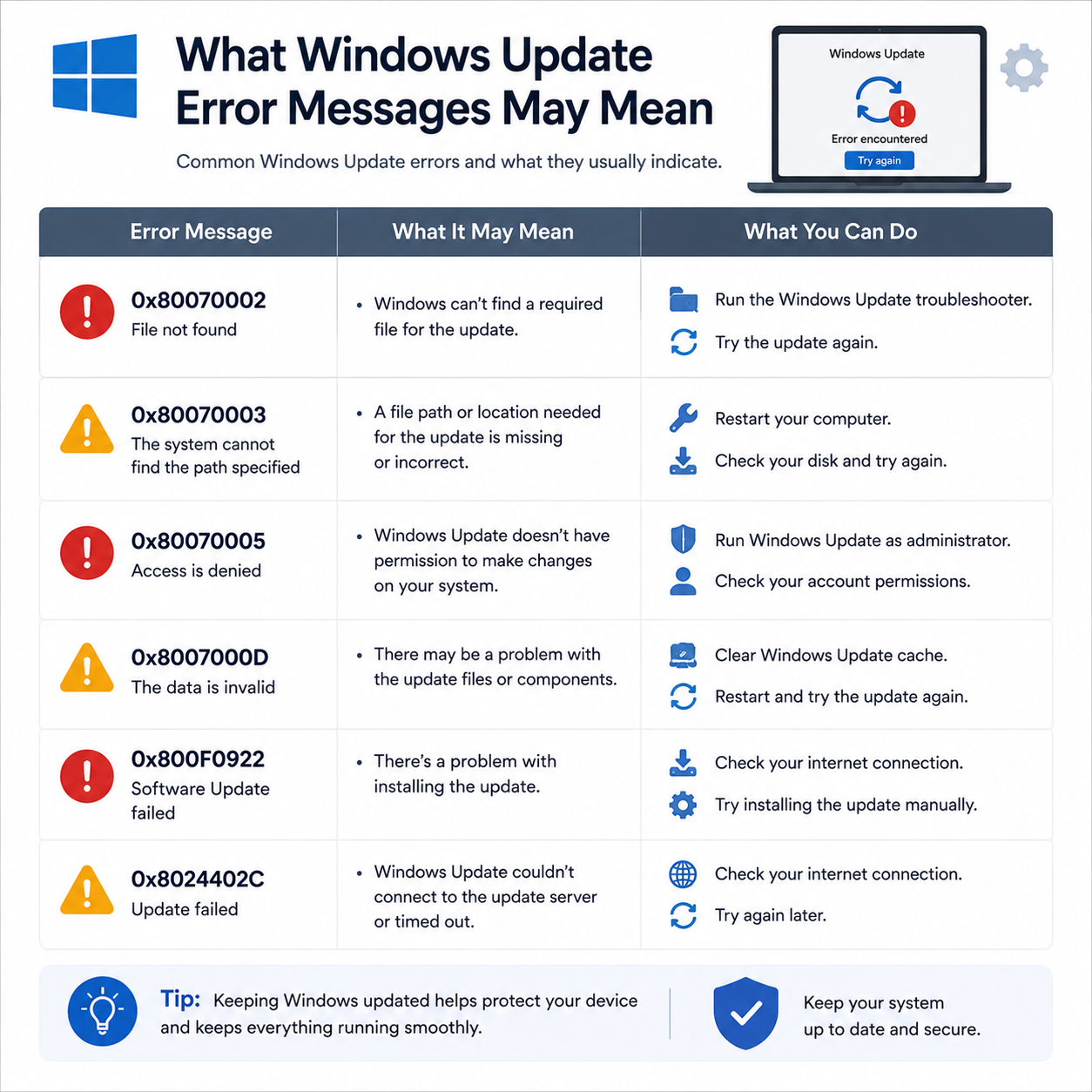
Why Windows Updates Show Messages
05 / Update Guide
Update Guide Verified reference: Microsoft Support

Why Windows Updates Show Messages

Learn update status, restart prompts, history logs and install screens.

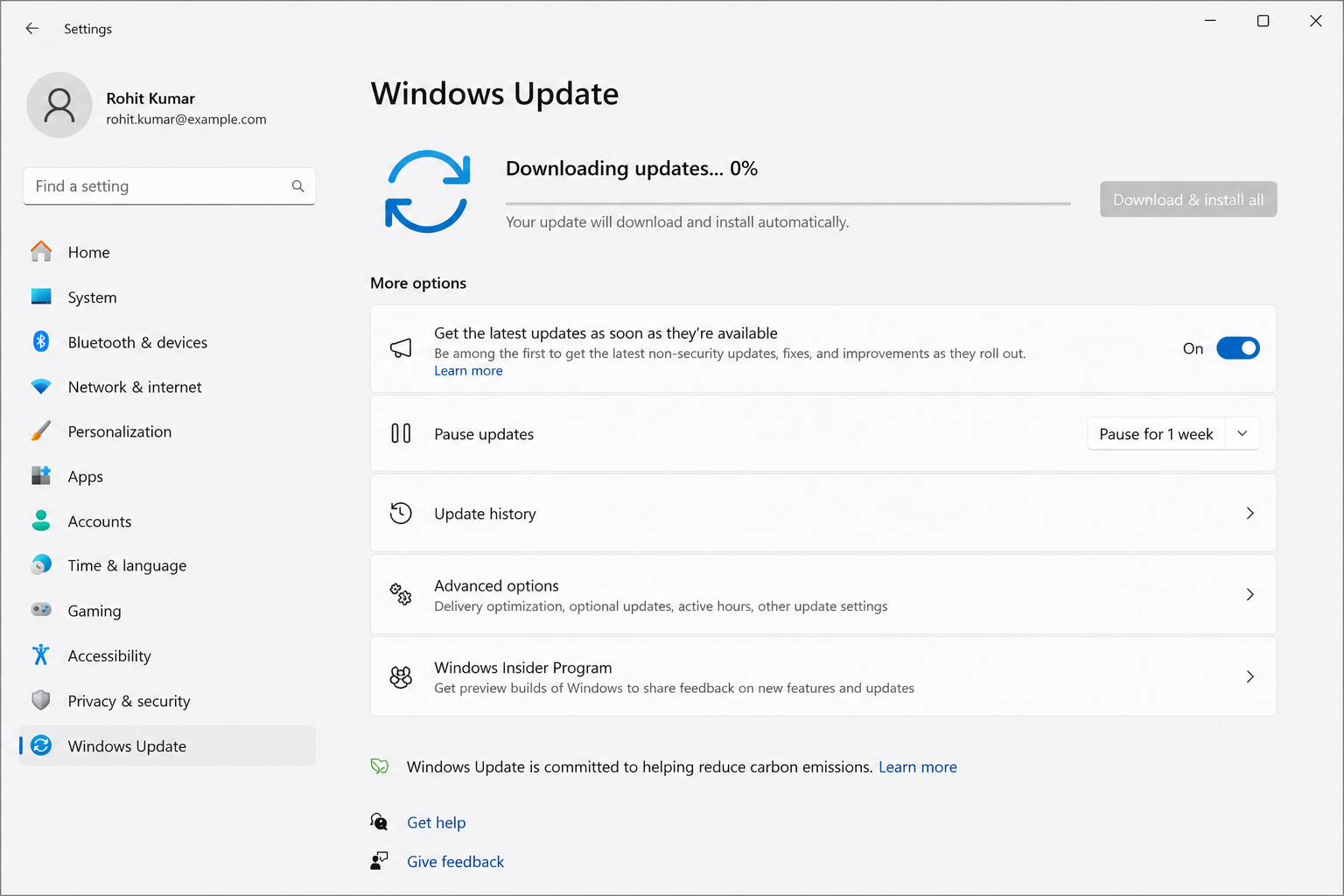
Operating system updates are essential maintenance patches that improve computer safety, resolve software bugs, and load new features. This guide walks beginners through update messages, restart prompts, update history logs and normal update screens.

Update cycle status
Restart prompts
Update history logs
Pending install screen
Guide Me Now learning desk
Computer settings details

100%

Educational Guides

About This Blog

A simple place to learn device basics.

Guide Me Now shares easy reading guides about printers, routers, email sync, PC performance, and system updates. We explain device behavior simply, without technical pressure.

Our Writing Approach

Concept-first explanations tailored for everyday readers.

Simple vocabulary, keeping technical jargon to a minimum.

Clear insights on connection settings and update prompts.

Mission Scope Boundaries

Concept Guides Yes
Tech Support No
Verified Sources Yes
Downloads/Files No

Educational Disclaimer: We are not affiliated with device manufacturers. All content is compiled for learning purposes only.

FAQ Database

Clear answers before you start reading.

Learn what this website provides, how the content should be understood, and where readers can find official documentation for deeper reference.

Notice: This website is an educational resource. No phone numbers, paid troubleshooting services, remote logins, or software repairs are offered on these pages.

Educational Blog Library

Read practical learning articles.

Explore simple articles about printers, routers, email access, slow computer behavior, and Windows update messages.

See All Articles
What you will find

Short, clear and beginner-friendly explanations.

Each article focuses on one common technology topic and explains it in simple language with official reference links.